
Want to be known as the Da Vinci of data visualization? If so, it’s important to learn how best to use Ignition’s creativity-unleashing SCADA design tools. And your efforts will be well worth it, because a beautifully designed control solution isn’t just nice to look at — it’s critical to speeding up decision-making, boosting efficiency, reducing errors, enhancing safety, lowering costs, and other goals.
Read on to learn how to elevate the user experience with bespoke screens, forms, and reports — and how to build them at astonishing speeds.
Build Stunning Screens Swiftly
Native Drawing Editor Tips
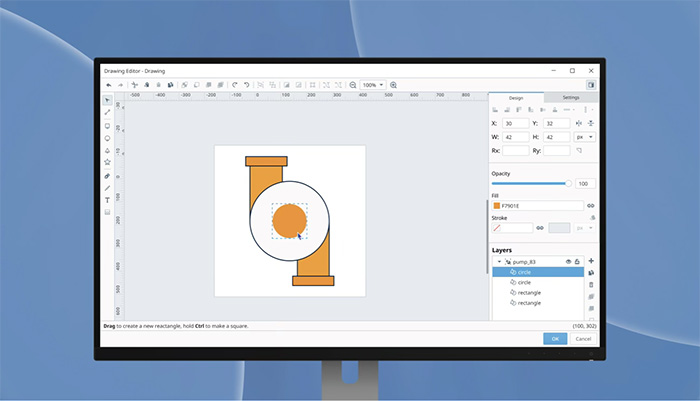
With Ignition 8.3’s first-class vector illustration interface, you have the power to create, edit, or animate custom SVGs for your dashboards and HMIs natively. As Maggie Rosenkrans, a Sales Engineer here at IA, puts it, “Gone are the days of needing to use an external SVG editing tool to create new SVGs and adjust pre-existing SVGs to make them animateable.” Hooray for that!
Editing in this SVG graphics editor is intuitive, performant, reliable, and just straight-up fun. IA Sales Engineer Reese Tyson highlights a big win you get with this new editor: “Drawing tools is a first-class drawing editor that streamlines the view creation process. Huge time-saver!”
IA Sales Engineer Thomas Goetz goes on to explain how a common design task has now been majorly sped up: “Searching for elements within complex SVGs can be a time-consuming task, but not anymore! Now, you can just click to locate elements.”
The new Drawing Editor empowers you with advanced functionality like snapping, guides, fill & stroke, path, layering, and more. There’s a library of controls spanning SVGs’ rich capability range. You can add or remove elements, alter colors, and modify stroke weights to your current library of SVGs. And there’s great functionality that makes tasks like HMI animation easy. “Not only can you create and edit SVGs without ever leaving the designer,” IA Sales Engineer Brad Fischer says, “but you can also handle bindings directly in the Drawing Editor, making it easier and faster to build graphics and couple them to real-time data.”
The new editor’s customization abilities open up infinite possibilities for your designs. As IA Sales Engineer Christine Lee explains, “Ignition’s built-in Symbols Palette is great, but it doesn’t cover every equipment out in the world. The Drawing Editor gives you the freedom to create any custom SVG graphic you need, right inside Ignition.”
IA Sales Engineer Adam Koch explains how the new designer is also helpful when it comes to converting screens: “The ability to create a shape or graphical object right in the designer has been part of Vision for a long time, and now with Perspective having that ability also, it can make converting screens from Vision to Perspective even easier.”
Quickly Create & Customize Forms
Form Component Tips
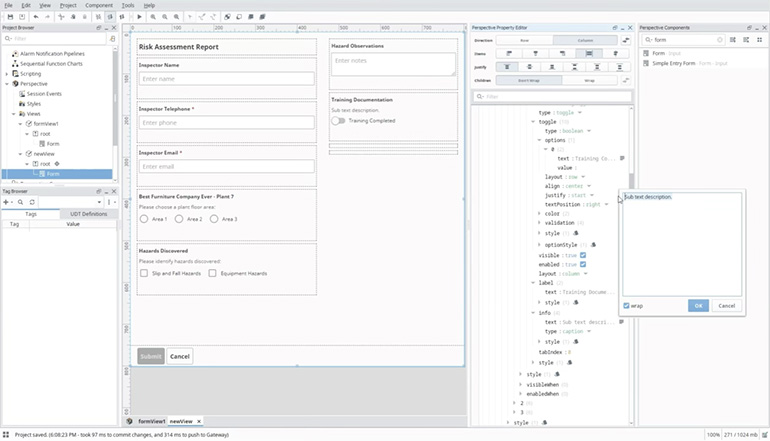
Ignition 8.3 includes a very handy, speed-boosting way to create forms that collect, validate, and submit industrial data. “Stop building forms from scratch,” Tyson advises. “The Form Component is a time-saving solution that automatically creates responsive, data-connected forms. Configure your fields and validation rules once, and watch it instantly adapt its layout for any screen size while updating in real time.”
IA Sales Engineer Chase Dorsey highlights the newfound level of simplicity you get with this tool: “Simply use the new Form Component to dynamically generate complex forms.” Rosenkrans goes into more detail about how much simpler things are now: “Before this component, you would need to manually bring in multiple labels and text area components. The new Form Component consolidates all of those extra components into widgets that can be easily added and removed as needed.”
The level of customization you can achieve with this form generator is outstanding, with seventeen different input types for your widget including single line, multi-line, checkable, range, and more. “The Form Component eliminates the tedious nature of building custom forms,” Fischer explains. “With a wide range of input types and limitless nesting and ordering, it’s never been easier to create the form your process needs.” Fischer goes on to offer tips on how to level up your forms: “You can even kick it up a notch by dynamically displaying portions of the form based on external conditions, or by storing parts of the form’s configuration in an external database, allowing you to easily reuse sections that pertain to multiple sites, processes, or people.”
And as for what to use this incredible new tool for? Koch offers up a suggestion: “This could be a great component for use cases requiring manual input like quality checks, safety inspections, or preventative maintenance checks.” And that’s just the beginning; the use cases for the Form Component are, much like Ignition itself, unlimited. As Goetz puts it, “The Form Component revolutionizes data input, providing a wide array of entry fields, from manual entries on the plant floor to on-the-go checks via mobile devices. Its versatility makes the possibilities truly limitless.”
Sponsored content by Inductive Automation